- 1.What is the video player used for?
The video player in IS VŠTE allows users to play videos online, i.e. directly in the browser page without the need to download the video to a local disk.
Videos can be embedded into Interactive Syllabi, ROPOTs, or custom study materials. It is possible to choose whether the video should be encrypted (to prevent students from downloading it) or whether downloading the video should be allowed.
- 2.How do I create a video player?
Drag the video file into the File Manager (or upload it using the “Add” option):
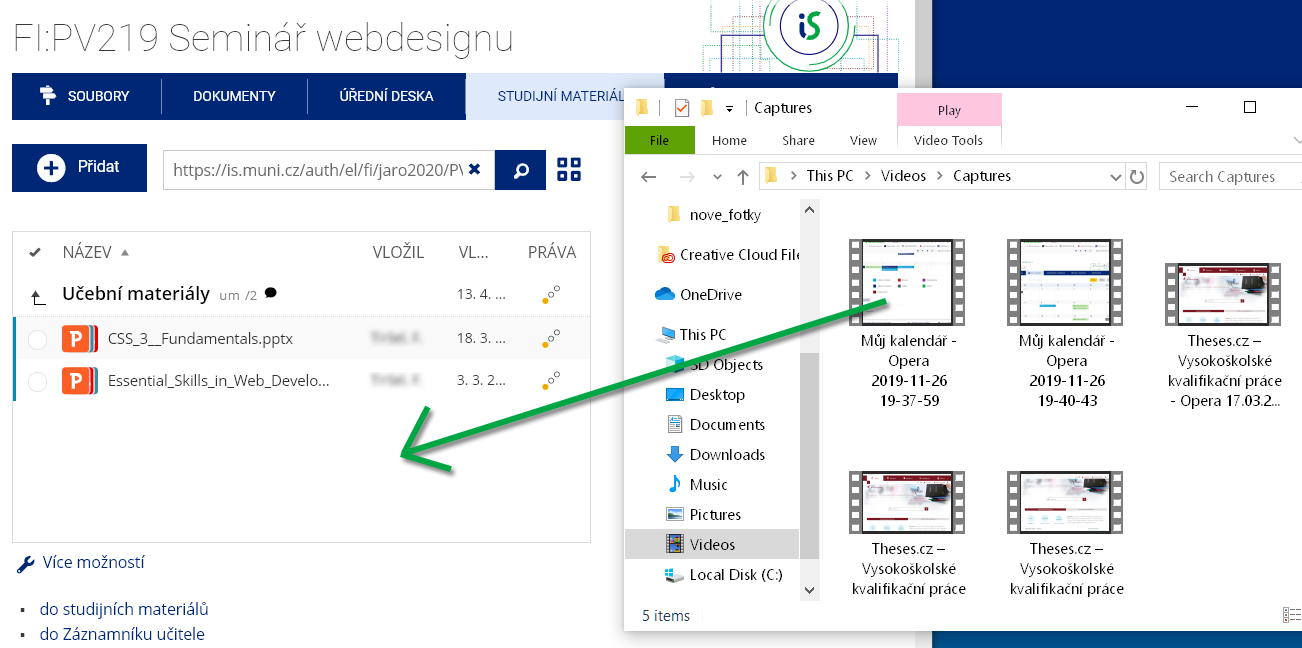
1 Drag the video into a folder in the File Manager.
In the File Manager, click on the row containing the video file and select the “Create an HTML5 video player” option from the displayed menu.
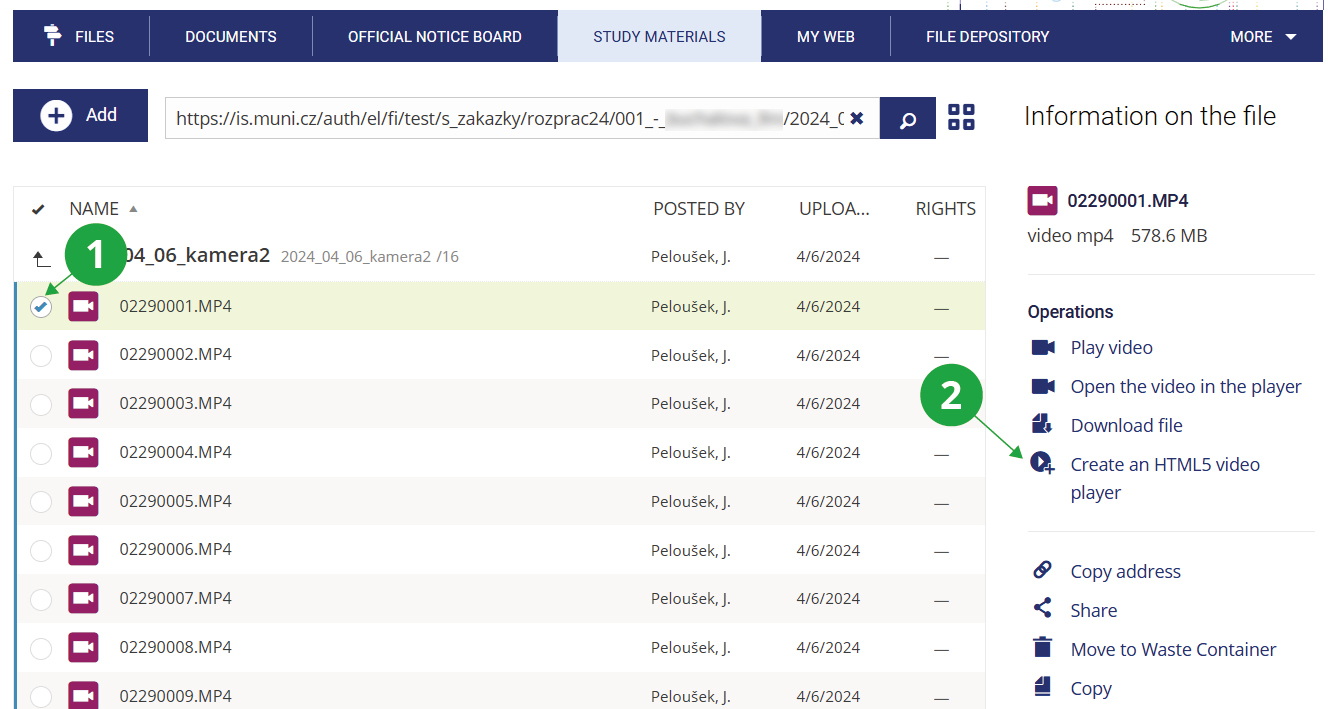
1 Select the uploaded video file.
2 Choose the “Create an HTML5 video player” option.
The settings for adding the video to the conversion queue will be displayed. Currently, there is an option to encrypt the video (and prevent downloading). An option to allow video downloading directly from the player will be added later.
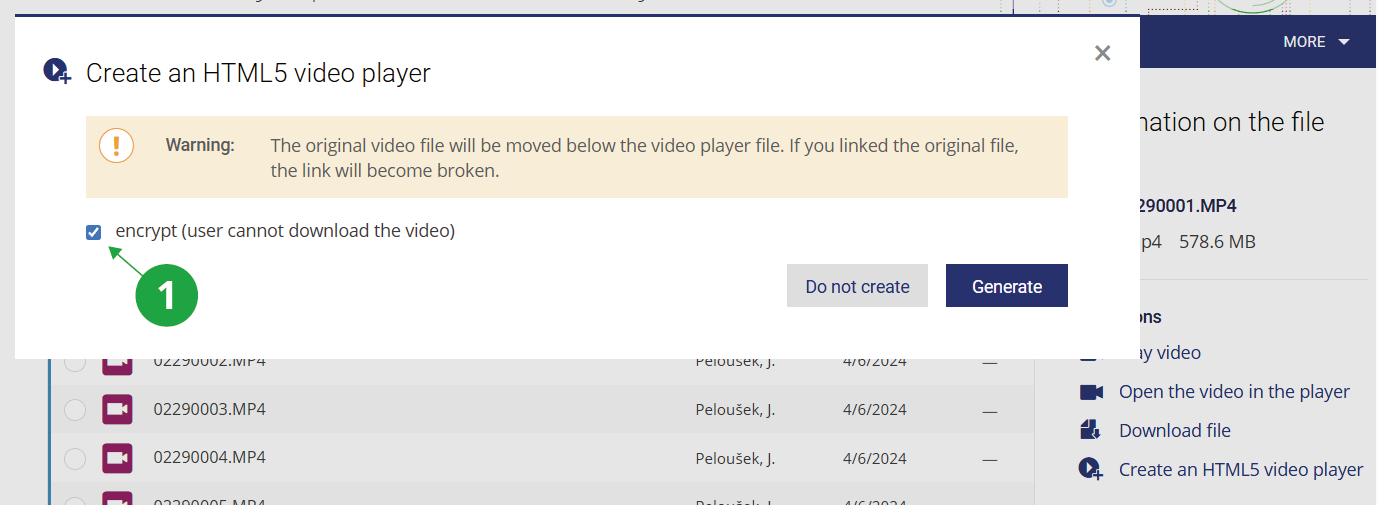
1 Video conversion settings.
A video player will be created, the original video file will be hidden, its read permissions will be removed, and the conversion and encryption process will start. An icon next to the file name indicates that the conversion is in progress. You can already use the player (e.g. embed it into a syllabus or discussion forum), but the video itself will only be playable after the conversion and encryption are completed (depending on the length and number of videos, this may take several tens of minutes).
If you previously linked directly to the original video file, the link will become invalid.
After clicking on the video player row in the File Manager, links for playing or sharing the video will be displayed.
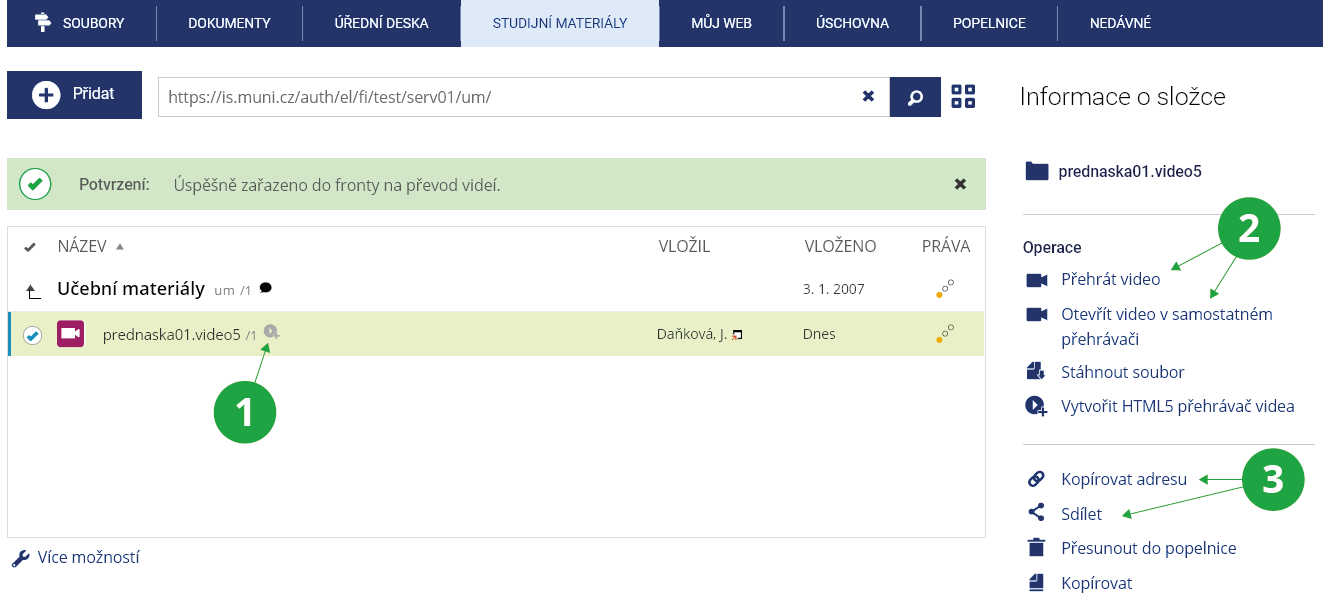
1 Indicator of an ongoing video conversion.
2 Options for playing the video.
3 Options for sharing the video and obtaining a link to send to students.
- 3.How can I control the video player?
The available controls of the video player are described in the following image.
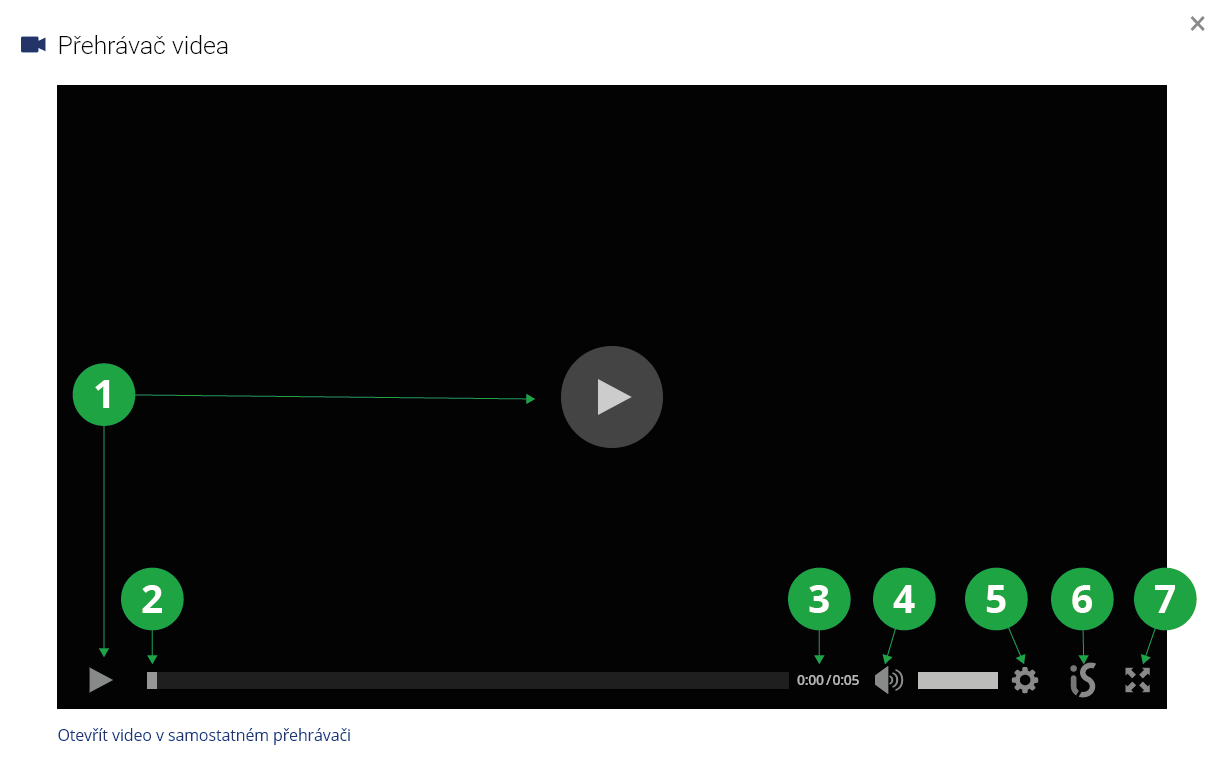
1 Play / pause the video.
2 Seek within the video timeline.
3 Current and total playback time.
4 Volume control.
5 Player settings (playback quality, controls).
6 Player information.
7 Enable / disable fullscreen playback.
- 4.How can I share a video?In the File Manager, the video player offers a “Share” option with detailed sharing settings.
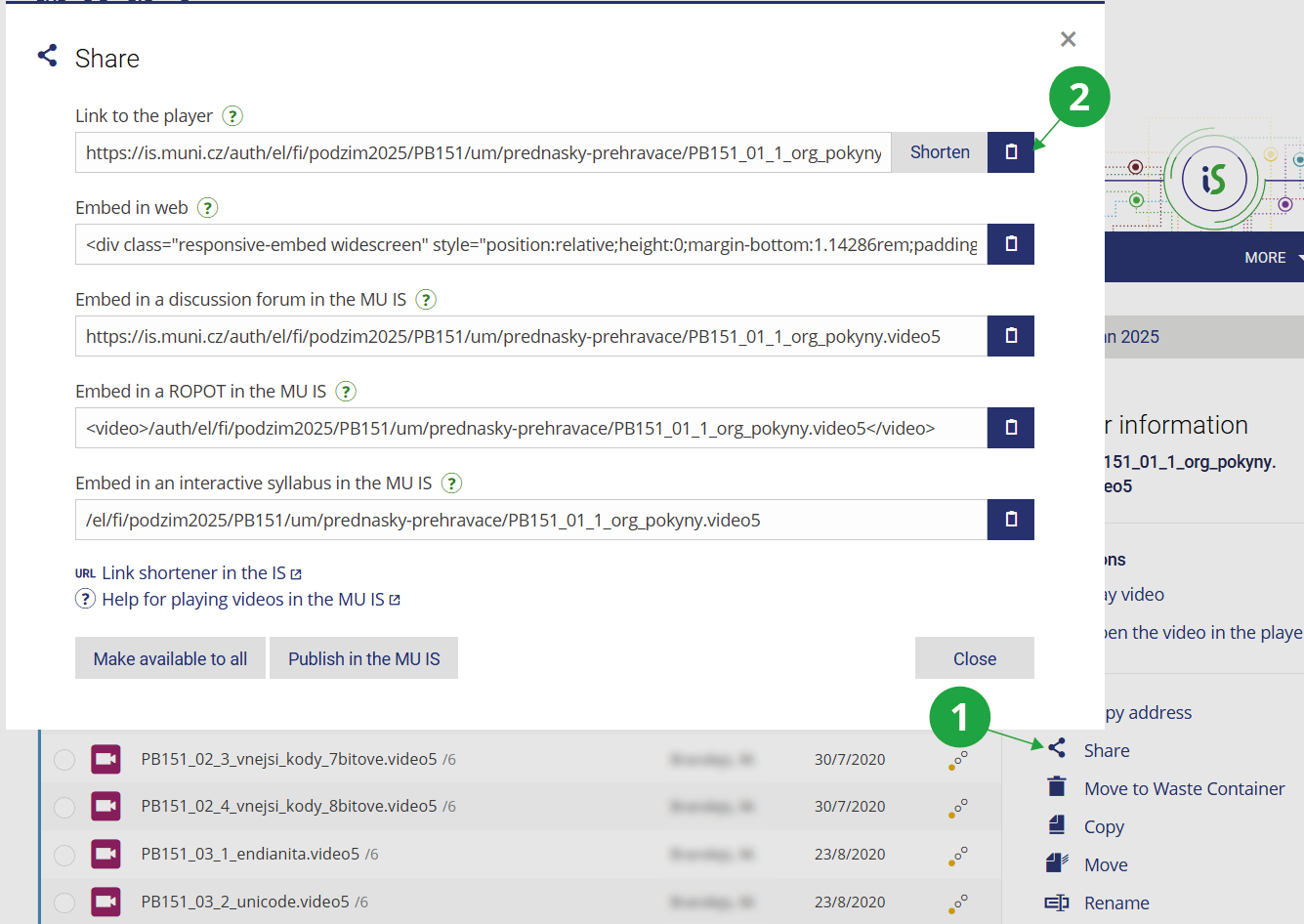
1 File sharing options.
2 Function to copy the link to the clipboard.
- Address in IS
- A direct link to the page where the video will be played. If this link is inserted into a question in ROPOT or into a discussion forum, the video will be played directly when the question is displayed (see How do I insert a video into a ROPOT?).
- Link shortener
- You can shorten the link using the link shortener, making it easier to dictate or include in an e-mail.
- Publish to the public
- Quickly change file access so that the video is publicly available on the internet.
- Publish within IS
- Quickly change file access so that the video is available to all users within IS VŠTE.
- 5.What format should uploaded videos be in?The system works with all files that are recognised by IS VŠTE as video files. These include all common formats (MP4, MKV, AVI, MPG, OGV, WebM, WMV, ASF, MOV, GT, 3GP, VOB, FLV and others). IS VŠTE ensures conversion into a suitable format for online playback.
- 6.Access Rights SettingsAccess rights are set in the same way as for any other file in the File Manager. The read permissions determine who is allowed to play the video. Whether users who can play the video will also be able to download it depends on the settings selected when creating the player. If you chose to secure the video against downloading during player creation, IS MU will automatically monitor the file to prevent any unintended enabling of download access.
- 7.How do I insert a video into a ROPOT?
You can insert a video into any question and at any place within the ROPOT. At the position where the video should be displayed, insert the address of the video player wrapped in the <video> tag, i.e. in the form <video>https://is.muni.cz/auth/.../video-name.video5</video>. This code can also be copied directly using the “Share” operation in the File Manager.

1 File sharing options.
2 Copy the player code for the ROPOT to the clipboard.
If you want students to access the video only through the electronic test, use the testbank folder to store the player.
- 8.How do I insert a video into the Interactive Syllabus?
You can insert a video into the Interactive Syllabus in two ways. The easiest method is to drag the video from your computer disk directly to the selected place in the Interactive Syllabus. For videos that are already stored in the Information System, use the “Video” icon (you can find it in the editing toolbar under the three-dots menu), then select the IS VŠTE icon and, in the displayed File Manager window, locate and choose the required video.
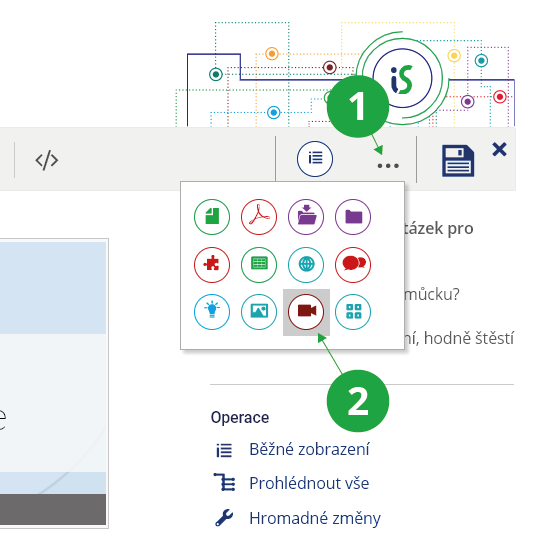
1 Additional options for inserting elements.
2 Inserting multimedia.
- 9.How do I insert a video into a Discussion Forum?You can insert a video at any place within your post in the discussion forum. At the position where the video should be displayed, insert the address of the player (https://is.muni.cz/.../video-name.video5). To ensure that the inserted address is replaced by the video itself, you must either switch to the “Fewer options” mode, or — in the “More options” mode — insert the video link as non-clickable text.
- 10.Inserting a video into custom materials (for example a study website)You can generally insert a video anywhere that allows embedding HTML code. Use the option “Video embed code” available in the video sharing section. Do not forget to correctly set access rights and choose the appropriate embed code (authenticated or non-authenticated).
Provided you have failed to find the information you were searching for, you can contact us at  fi
fi municz